Setting Up a Windows Environment for Bash Scripts
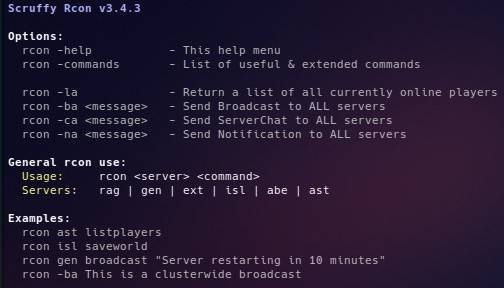
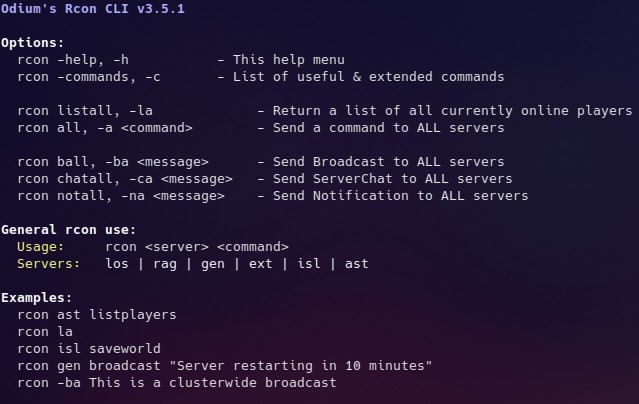
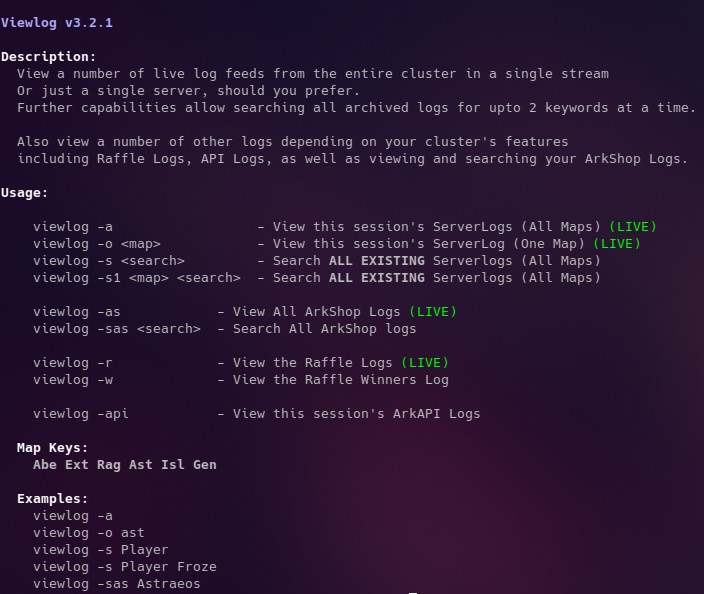
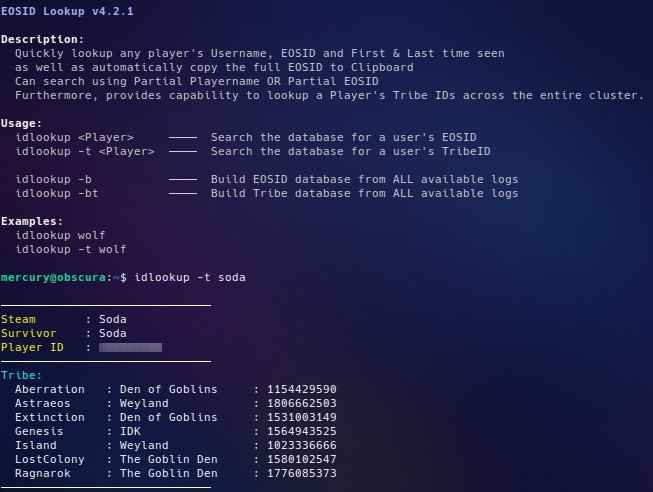
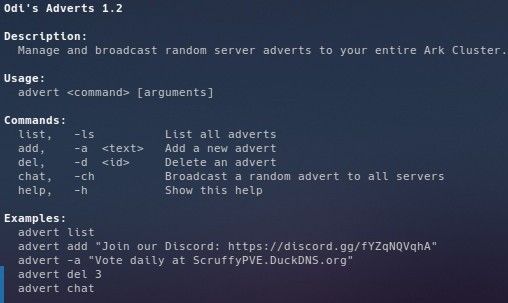
I’ve written a number of useful command-line scripts for Ark Management in Bash.
Bash is normally used in Linux environments, however these scripts can also be run in Windows using Git Bash.
This guide sets up the small environment needed to run them.
You do not need to know Linux, Git, programming, or Bash to follow this guide.
What are we installing?
There are four things:
- Git Bash — provides the Bash environment used to run the scripts.
- jq.exe — used by some scripts to read and modify JSON files. (Optional)
- mcrcon.exe — used by scripts that need to communicate with an ARK server through RCON.
- A PATH entry — tells Windows where to find these command-line programs.
None of this replaces Windows components or modifies your server configuration in any dangerous way.
1. Install Git for Windows
Download and install Git for Windows from the official website:
https://git-scm.com/download/win
Git Bash is included with Git for Windows, so there is nothing else to install for Bash.
Once installed, open Git Bash from the Windows Start menu.
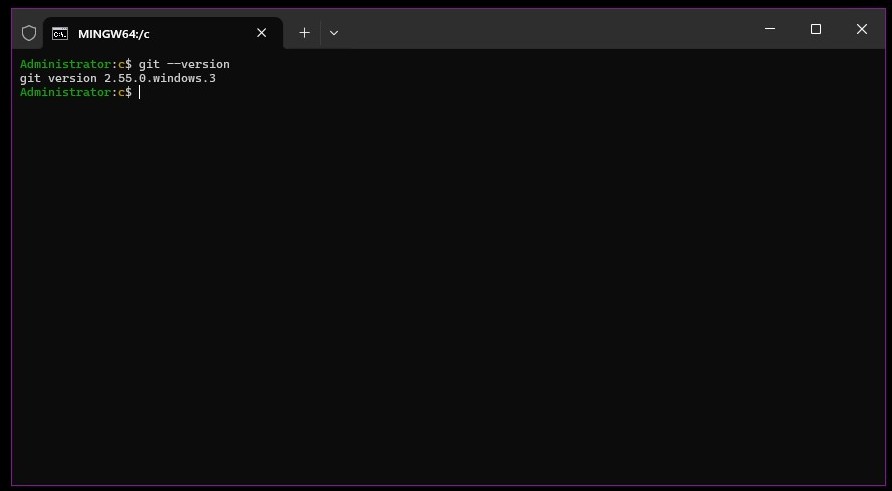
You can check that it is working with:
git --version
Seeing a version number means Git is installed correctly.
2. Create a folder for command-line tools
Create a folder somewhere convenient for your scripts and utilities.
For example:
C:\Scripts
This folder will contain the small .exe utilities used by the scripts.
3. Add mcrcon.exe
Download the Windows version of mcrcon and place the executable in:
C:\Scripts
Make sure it is named:
mcrcon.exe
4. Add jq.exe (Optional)
(Optional – jq.exe is only used for the ArkShop CLI)jq is a lightweight and flexible command-line JSON processor – it allows a user (or scripts) to interact with and manipulate JSON data, such as is found in ArkShop’s config.json
Download the Windows version of jq and rename the executable to:
jq.exe
Place it in:
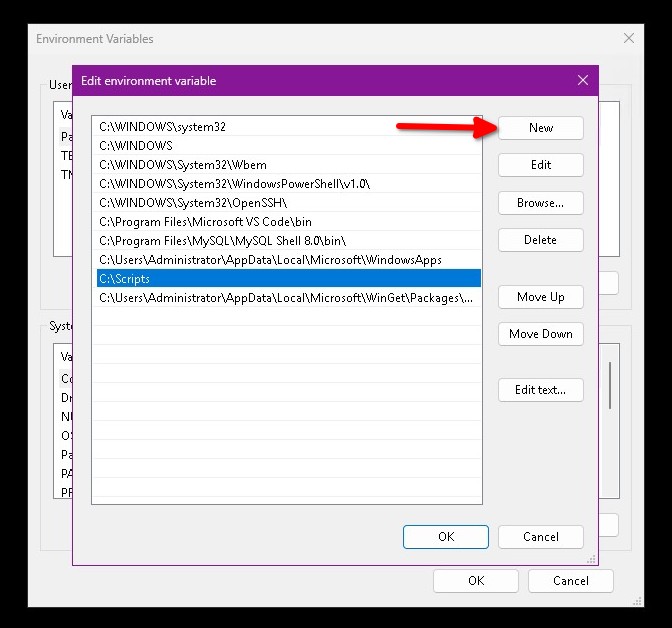
C:\Scripts5. Add C:\Scripts to your PATH
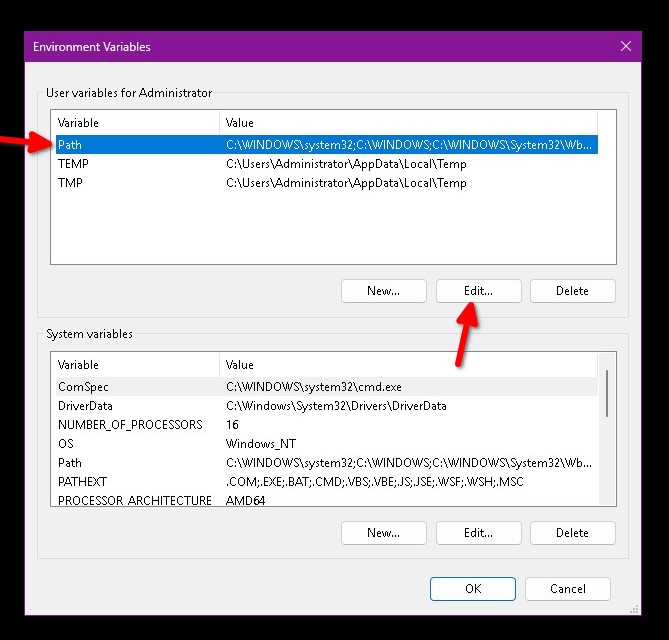
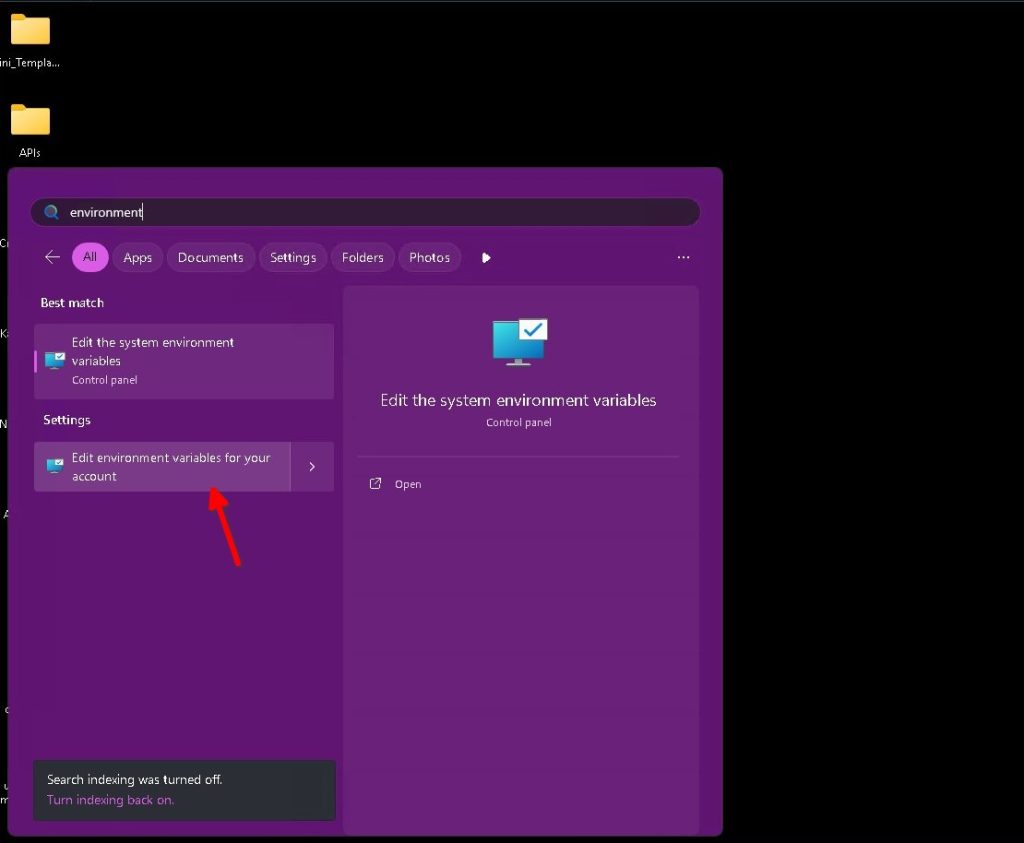
Windows needs to know that command-line programs can be found in C:\Scripts.
This is safe and simple. You are not replacing Windows files or changing system settings. You are simply adding one folder to the list of locations Windows checks when a command is entered.
Follow the separate guide:
⮞ Adding a Folder to the Windows PATH
7. That’s it
Your Windows server now has the same basic command-line environment that I use for my Bash scripts.
Individual scripts may require additional configuration, but the underlying environment is now ready.
You do not need to install Linux or learn Git to use the scripts.