Adding a Folder to the Windows PATH
This is a simple and safe Windows setting. You are not changing or replacing Windows system files – you are simply telling Windows where it can look for command-line programs.
For ArkShop, this allows you to place jq.exe in a folder such as C:\Scripts and have the arkshop command find it automatically.
1. Open Environment Variables
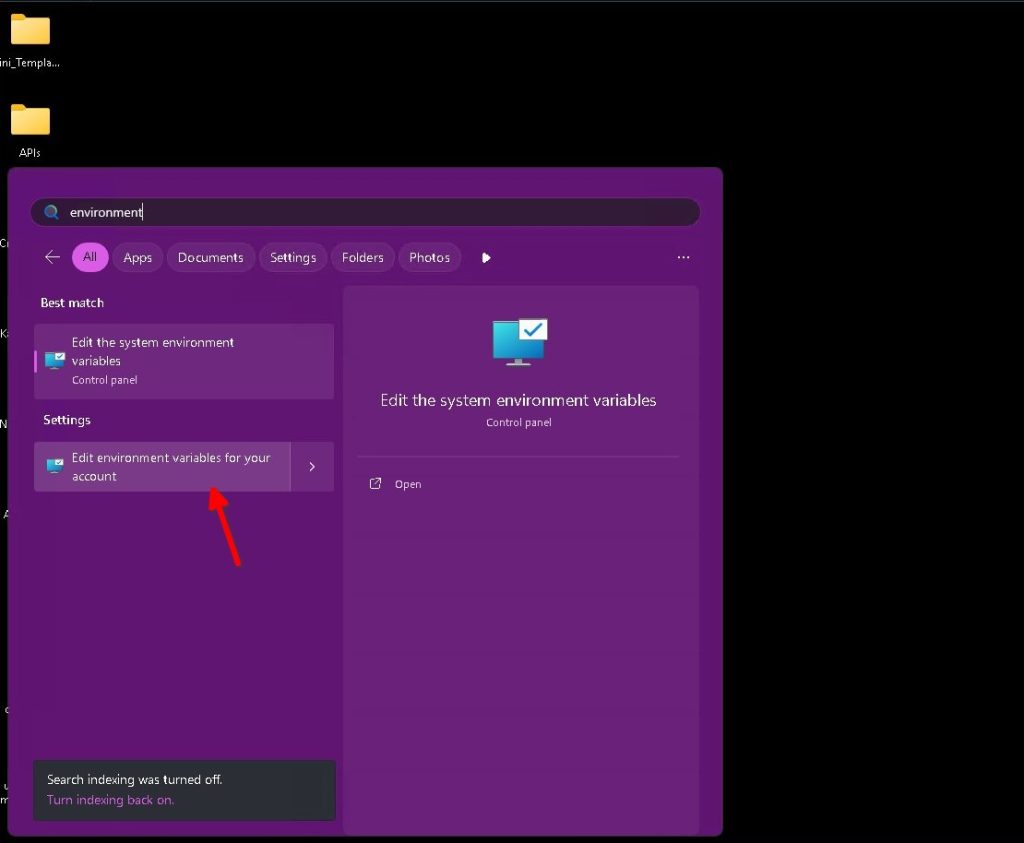
Open the Windows Start menu and search for environment.
Select Edit environment variables for your account.
2. Open your User PATH
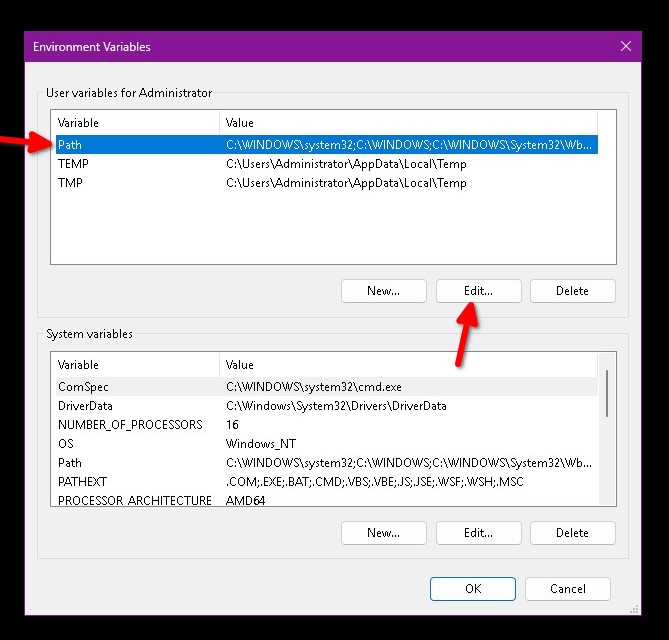
In the Environment Variables window, look at the User variables section at the top.
Select Path, then click Edit.
Make sure you are editing the User variables section, not the System variables section.
3. Add the folder
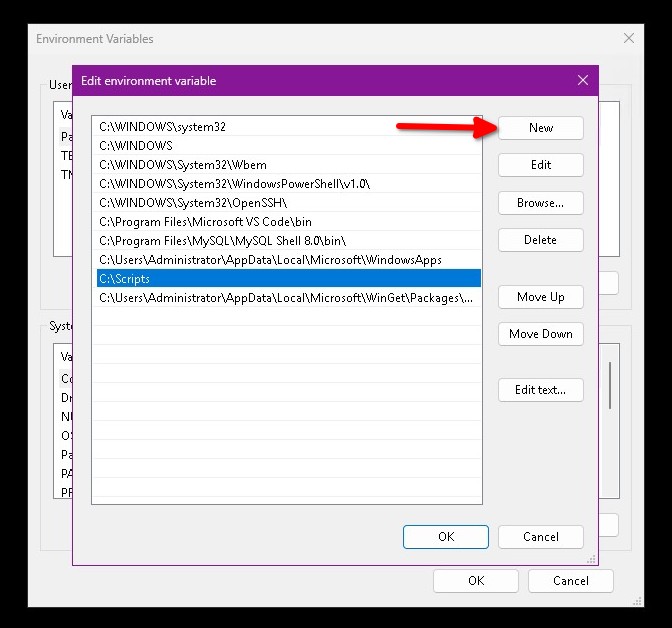
Click New and enter the folder containing your jq.exe.
For example:
C:\ScriptsDo not change or delete any of the existing entries. You are simply adding one new entry to the list.
Click OK, then OK again to close the Environment Variables windows.
That’s it
This does not install anything, remove anything, or modify Windows itself. It simply adds one folder to the list of places Windows checks when you type a command.
Open a new terminal window and test it with:
jq --versionIf jq is installed correctly, you should see its version number.
Nothing else needs to be changed.